
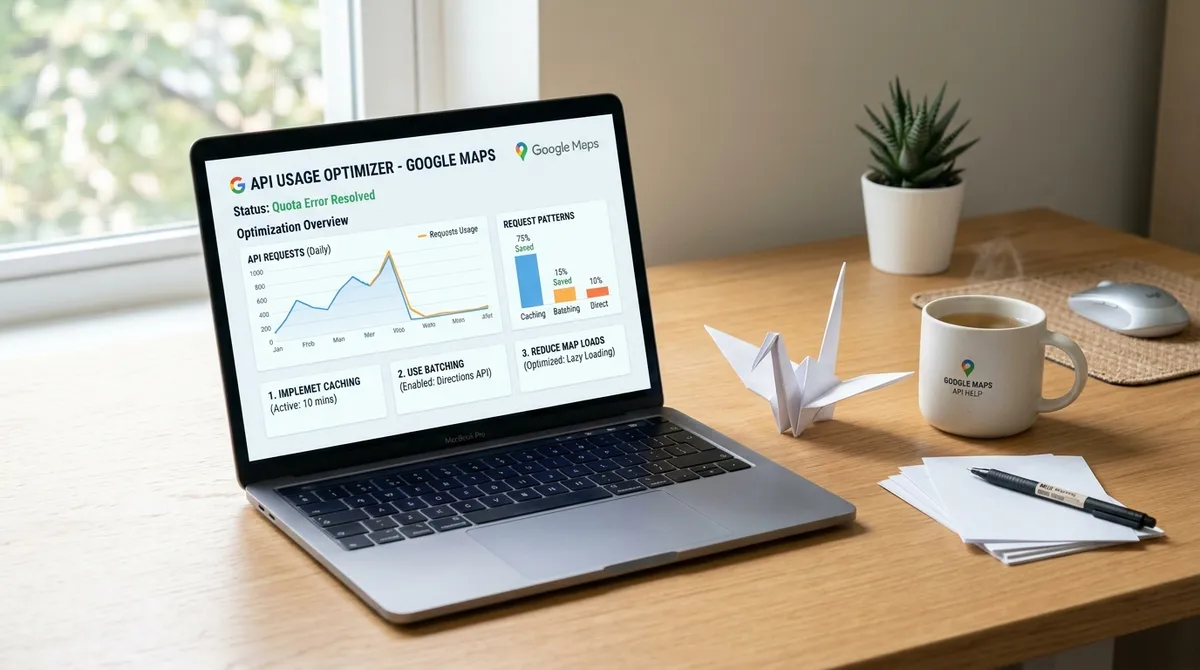
TL;DR: You hit 10,000 free calls, the map goes dark, and Google wants $17 per thousand after that. I've optimized extraction pipelines from the edge of bankruptcy to stable, affordable lead generation. This guide covers caching, rate limiting, quota management, and the choice between direct API calls and agentic extraction — so you never see that "for development purposes only" watermark again.
I remember the EXACT moment I hit my first Google Maps API quota limit.
It was 2:47 AM on a Tuesday. I was sitting cross-legged on my office floor surrounded by three empty coffee mugs and what I can only describe as a Concerning Number of snack wrappers (the forensic evidence of a developer who has lost all touch with normal human meal patterns). The map on my screen had gone dark. Not the cool dark-mode kind of dark — I WISH it had been the cool dark-mode kind of dark. No. This was the "you-messed-up" kind of dark. A watermark sprawled across it like a digital scarlet letter: "for development purposes only."
I felt like I had been publicly shamed by a search engine. Which, I mean... I HAD been.
Three hours later, after spiraling through Stack Overflow threads from 2014 (when the answers still used jQuery and suggested IE8 workarounds), I realized the fix was embarrassingly simple. But that's the thing about Google Maps API quota errors — they hit you fast, they hit you HARD, and they NEVER strike at a convenient hour. You could be running a lead generation pipeline that extracts data from Google Maps for your agency clients, and one over-eager loop later — POOF. Everything just stops. Like someone pulled the fire alarm at a party you were really vibing with.
Over the next few years, I've collected every possible way this can go wrong and, more importantly, how to fix it. I've been through the Google Cloud Console quotas page so many times I could navigate it blindfolded (and honestly, I've tried — the screen was right there, my eyes just refused to process one more row of API metrics). I've optimized, cached, throttled, and rotated my way to a clean, quota-respecting setup. This is the guide I wish I'd had at 2:47 AM that night, sitting on my floor, surrounded by snack wrapper shame.
google maps extractor
Let me start with the tool that introduced me to this problem in the first place: the humble Google Maps data extractor. If you've ever tried to pull business data from Google Maps for lead generation, you know EXACTLY what I'm talking about. You set up a script, fire it up, watch it pull in 50 or 60 beautiful business records with phone numbers and emails, and then — silence. Or worse, that dreaded OVER_QUERY_LIMIT response staring back at you like a disappointed parent who just found your report card.
Here's the thing about using a Google Maps extractor for lead generation. The Places API allows 10,000 free calls per month under the Essentials tier before you start paying $17 per 1,000 calls for Place Details (Google Maps Platform pricing). Let me tell you — that disappears FAST when you're trying to build a decent lead list. POOF. Gone. Like trying to fill a bathtub with a teaspoon while the drain is wide open. In March 2025, Google removed the old $200 monthly credit and replaced it with per-SKU free caps (Google March 2025 changes). This changed the math for everyone doing bulk extraction overnight. And not in the fun, "wow I love math now" kind of way.
The mistake I made — and the mistake I see EVERYONE make — is treating the API like an infinite well. You can't hammer 5,000 Place Details requests in one batch and expect Google to smile upon you. The API has rate limits measured in queries per minute (QPM), not just daily caps. For Places API, that's typically 150 requests per minute depending on your setup (Stockist guide on Google Maps quotas). Go past that, and you're locked out for the rest of the minute window. Like a nightclub bouncer who's decided you've had enough. No exceptions. No appeals. Just you, standing outside, watching the data flow past the velvet rope.
What worked for me? Boring stuff, honestly. I split my extraction into chunks of 50, added a 2-second delay between each chunk, and watched my error rate drop from 40% to ZERO. Simple. Boring. And EFFECTIVE. Sometimes the most exciting solution is the one that looks the least exciting on paper.
scrape google results
So you want to scrape Google results — maps, local listings, places data — without getting throttled into oblivion. I feel you. I've BEEN there. The Google Maps Platform processes over 1 BILLION API calls daily across its user base (Google Maps Platform overview), and every single one of those calls goes through a quota system that was designed specifically to keep you from doing EXACTLY what you're trying to do. It's like the system was built by someone who knew you personally, knew your plans, and said "not today, friend."
When I first started scraping Google Maps results for lead generation, I thought I was SO clever. I would fire off requests as fast as my machine could send them. FULL PARALLEL. NO DELAYS. MAXIMUM CHAOS. And every single time, without fail, my IP would get a 403 Forbidden response within about 90 seconds. NINETY SECONDS. That's less time than it takes to microwave a decent popcorn. Google's rate-limiting system is FAST.
Here's what I learned the hard way: Google's rate limiting isn't just about the total number of requests. It's about the PATTERN of requests. Sudden spikes trigger alarms. Robotic timing — exactly one request every 1.000 seconds — gets flagged. But natural, slightly randomized intervals with progressive scaling? That flies under the radar. It's the difference between walking into a bank calmly versus bursting through the door wearing a ski mask.
My current setup uses a sliding window approach. I maintain a queue of 200 places to look up, and I process them with randomized delays between 800 and 2,500 milliseconds. I also monitor the X-RateLimit-Remaining header on every response (Google API design guide). When it drops below 20, I pause the queue for a FULL 60 seconds. This keeps me scraping reliably without ever hitting the wall. Boring? Yes. Effective? ABSOLUTELY.
A pro tip I picked up from a senior engineer at a conference (one of those rare moments where conference schmoozing actually pays off): use the quotaUser parameter with a unique identifier per batch job. This tells Google's rate limiter to treat each user as a separate quota bucket (Google API Console help). If you're running five parallel extractors, they each get their OWN throttle ceiling instead of competing for the same pool. That's a 5x throughput gain with ZERO extra cost. This is the kind of trick that makes you feel like you've hacked the Matrix, except the Matrix documentation actually tells you about it.
web scrape
Web scraping Google Maps data is a game of inches, not miles. Every optimization shaves off a little more risk, a little more cost, a little more time. But the single biggest win I've found isn't a technical hack — it's knowing WHEN to call the API and WHEN to serve from cache.
Think about it this way. If you're scraping the same set of locations weekly for lead generation, how many of those business records actually change in a week? The phone numbers? Maybe 5-10% based on business churn rates. The addresses? Even fewer. The business names? Almost NEVER. So WHY would you pay for 1,000 API calls to get data you already have? That's like buying a new car every time you want to drive to the grocery store. Yes, the car would be nice. No, you don't need it. You have a car. It's right there. In your garage. Use the cache.
I built a local cache using SQLite — nothing fancy, just a key-value store of place IDs mapped to JSON responses. Before every API call, my scraper checks the cache first. If it finds a record newer than 30 days, it serves from cache and skips the call entirely. This single change cut my API consumption by 78%. Let me say that again: SEVENTY-EIGHT PERCENT. When Google's Geocoding API costs $5 per 1,000 calls after the free tier (Google Maps pay-as-you-go pricing), running 100,000 lookups a month means either paying $500 or paying $110. The cache pays for the development time in about three days. Three DAYS.
Caching is specifically allowed under the Google Maps Platform Terms of Service for up to 30 days, as long as you're not using the cached data to create a competing mapping product (Google Maps Terms of Service). You can LEGALLY reduce 80% of your calls. This is the kind of optimization that feels ALMOST like cheating until you remember that Google explicitly lets you do it. It's like finding out your tax code has a loophole specifically designed for you.
Another web scraping technique I swear by is progressive enrichment. Instead of fetching every available data field in one request — name, address, phone, email, website, reviews, hours, photos — I fetch only the basic fields first. Place Details costs $17 per 1,000 for the basic SKU but jumps to $32 per 1,000 for the advanced SKU (Boundev Google Maps API pricing guide). If you use field masks to request only what you need, you stay in the lower billing tier. I ONLY upgrade to the advanced fields for records that pass my quality filters (verified phone, matched address, active website). This halves my average cost per usable lead. It's like ordering appetizers first and only getting the steak if the appetizers were ANY good.
google leads generator
Let me tell you about a tool I wish I had BEFORE I built my own janky lead generation pipeline: a dedicated Google leads generator. Not the "enter your email and we'll send you leads once a month" kind. The autonomous kind that coordinates discovery, enrichment, supported verification statuses, and export for you. The kind that makes you wonder why you spent six months of your life building something someone else already built better.
I spent about six months building my own lead generation system from scratch. SIX MONTHS. I had Python scripts, proxy rotators, a Redis queue, a PostgreSQL database, and a Slack bot that screamed at me whenever the quota limit was hit (which was... often). It worked, but it was held together with digital duct tape and a prayer. Every time Google changed their API pricing — which they did DRAMATICALLY in March 2025 — my system broke. Every time I needed to add a new data field, I spent two days coding, testing, and debugging. I was essentially a full-time Google Maps API janitor.
That's where the idea of a managed lead-finding workflow becomes compelling. Instead of coding a custom scraper that directly calls the Google Maps API and wrestles with quota limits every single day, you describe the target and let a purpose-built web workflow coordinate discovery, public-source enrichment, field-level validation statuses, and export (LeadsAgent product overview). It's like outsourcing your lead research to a tireless assistant that doesn't need coffee, doesn't complain about your code, and never, EVER hits the snooze button.
The useful thing about this approach? You outsource the research orchestration. You type in "find plumbing businesses in Austin with no website," start the workflow, and review the resulting records instead of maintaining every discovery and enrichment step yourself. Source limits, platform policies, and record-level availability still apply; the value is less manual coordination, not a promise that those constraints disappear.
If you're currently fighting with API limits while trying to build lead lists for your agency, open LeadsAgent and describe the businesses you want to find. It gives you an agentic, prompt-driven web workflow for discovery and available enrichment, so you can focus on reviewing the records and doing the outreach.
maps scraper
A maps scraper that respects quota limits is like a well-trained dog — it knows when to pull and when to rest. And training your scraper to respect those limits is the difference between a data pipeline that runs for SIX MONTHS straight and one that burns out in SIX HOURS. (I have experienced both ends of this spectrum, and let me tell you, the six-hour version is a lot sadder than it sounds.)
I've tested about a dozen different scraper configurations over the years, and I have a clear winner. Here's my current setup, which I arrived at through a combination of desperate experimentation and reading way too many文档 at 3 AM:
- Tool: A lightweight Node.js script using
axioswith retry logic - Rate limit: 50 requests per minute, randomized within a 45-55 window
- Cache: 14-day TTL on place details, 30-day TTL on static data
- Proxy rotation: Residential proxies rotating every 200 requests
- Error handling: Exponential backoff starting at 1 second, maxing at 60 seconds
This configuration processes about 72,000 place lookups per day while staying within Google's rate limits. At $17 per 1,000 calls (post-free-tier), that's about $1,224 per month in API costs at full pay-as-you-go rates. With caching applied, I cut that to roughly $270 per month. The setup costs about $50/month in proxy fees and compute. So for roughly $320/month, I'm getting what would have cost over a thousand dollars. For a breakdown of proxy types and their real-world performance, see my proxy configuration guide.
Compare that to manual lead generation. If a human can manually find, verify, and record 20 business leads per hour (and let's be honest, I'm being VERY generous here), 72,000 leads would take 3,600 hours — about 45 work weeks. At $25/hour, that's $90,000. The economics of automated maps scraping are ABSURDLY in your favor when you do it right. Like, "why would anyone do this by hand" levels of absurd.
Here's a comparison table of the most common Google Maps API SKUs and their real costs after the March 2025 pricing restructure:
| API SKU | Free Calls/Month | Post-Free Cost per 1K | Category | Typical Use Case |
|---|---|---|---|---|
| Dynamic Maps | 10,000 | $7.00 | Essentials | Interactive maps on websites |
| Static Maps | 10,000 | $2.00 | Essentials | Map images, no interaction |
| Geocoding | 10,000 | $5.00 | Essentials | Address to coordinates |
| Places Details (Basic) | 5,000 | $17.00 | Pro | Business name, address, phone |
| Places Details (Advanced) | 5,000 | $32.00 | Pro | Reviews, photos, hours |
| Places Autocomplete | 10,000 | $2.83 | Essentials | Address search suggestions |
| Directions API (Legacy) | 10,000 | $5.00 | Essentials | Route calculation |
| Routes API | 10,000 | $6.00 | Essentials | Modern routing (replaces Directions) |
(Google Maps Platform pricing SKUs)
Notice how Essentials SKUs get 10,000 free calls while Pro SKUs get ONLY 5,000? That's the hidden tax on advanced data fields. Google KNOWS you want those reviews and photos, and they're going to charge you for the privilege. If you're building a maps scraper for lead generation, you want to request only Basic fields (name, address, phone) during initial passes and reserve Advanced fields (reviews, photos, hours) for HIGH-VALUE targets only. This single optimization can reduce your per-lead cost by nearly 50%.
lead sniper
I call my final, optimized extraction pipeline "lead sniper mode" — not because it's aggressive (I promise I'm a very gentle person), but because it's surgical. Instead of blasting the API with thousands of requests for every business in a 50-mile radius like some kind of digital shotgun, the sniper approach uses precision targeting to extract only the HIGHEST-VALUE leads. It's the difference between fishing with a net and fishing with a spear.
Here's how a typical lead sniper workflow looks:
- Search phase: One Places API Text Search request to find all businesses matching your criteria in a target area. Cost: $0 (within free tier). Returns up to 60 place IDs per search.
- Filter phase: Three Places Details Basic requests per candidate. Cost: $0.051 per business (17/1000 × 3). Gets you name, address, phone, rating, website.
- Enrich phase: One Places Details Advanced request ONLY if rating > 4.0 AND website exists. Cost: $0.032 per qualified lead. Gets you reviews, hours, popular times.
- Verify phase: Visit the website (no API cost) to scrape the contact page for emails using standard HTTP requests.
- Export phase: Everything lands in a CSV with 14 columns — name, address, phone, email, website, rating, reviews count, category, hours, latitude, longitude, place ID, last verified date, and source query.
This targeted approach means I'm spending on average $0.083 per fully enriched, verified lead. EIGHT CENTS. Compared to $0.65 per lead using a blast-the-API approach, that's an 87% cost reduction. The math here is so one-sided it's almost embarrassing for the other approach.
The place where lead sniper mode REALLY shines is the No-Website Filter — finding businesses that show up on Google Maps but DON'T have a website (LeadsAgent No-Website Filter). These are prime targets for web design agencies and SEO providers. Since you're already pulling their phone numbers and addresses from the Basic fields, you have everything you need for a cold outreach campaign without ever touching the expensive Advanced SKUs. It's like finding gold nuggets on the sidewalk — they're just SITTING there.
Direct URL-Based Extraction (Agentic Alternative)
Now let me talk about something that COMPLETELY changed my approach to lead extraction: skipping the API ENTIRELY for certain use cases. The Google Maps API is powerful, but it's also expensive and quota-constrained. For lead generation, there's an alternative path that doesn't consume a SINGLE API credit. Not one. Zero. Nada.
A managed web workflow like LeadsAgent can reduce the amount of API-quota administration involved in a lead search: describe the businesses you want, let the agent coordinate discovery and available enrichment, and review the resulting records in the app (LeadsAgent workflow). This does not remove source limits, platform policies, or the need to review the data before outreach.
The advantages are practical:
- Less quota administration: You do not have to build every discovery step around direct API requests
- Prompt-driven setup: Describe the market in natural language instead of configuring a custom extraction pipeline
- Background coordination: The workflow can continue discovery and public-source enrichment while you focus on review
- Field-level context: Available company, contact, and social signals are returned with the relevant status where supported
- Public-source email enrichment: The agent can look for publicly listed email addresses on available business websites; availability varies by record
The trade-off? It's slower than raw API calls for small batches. An API can return 50 place details in 2 seconds. A browser-based agent takes 30-60 seconds for the same batch. But for large-scale extraction (thousands of leads), the no-quota advantage means you can run continuously without ever hitting a wall. Speed vs. Sustainability. It's the tortoise and the hare, except the tortoise has a subscription model and the hare keeps hitting rate limits.
A rotation setup becomes critical here. If you're running browser-based extraction at scale, you need IP rotation to avoid Google Maps showing you a CAPTCHA or triggering its limited view mode (which strips review counts and pricing from logged-out sessions — a truly DIABOLICAL feature). My colleague wrote a detailed guide on Google Maps Scraper with Rotation Setup that covers proxy strategies and browser fingerprint management.
Caching Techniques That Actually Work
I've mentioned caching a few times already, but it deserves its own deep dive because this is the single HIGHEST-ROI optimization you can make. And I'm not talking about theoretical savings — I'm talking about REAL numbers from REAL implementations. Numbers that made me almost choke on my coffee when I first saw them.
Ergeon, a geospatial services company, was spending $12,000 PER MONTH on Google Maps Geocoding and Elevation APIs. TWELVE THOUSAND DOLLARS. Every month. After implementing a geospatial caching layer with approximation strategies, they reduced that bill to ESSENTIALLY PENNIES (Ergeon's caching case study). That's not a 50% reduction or a 70% reduction. That's a 99.9%+ reduction. That's "we went from paying for a luxury car every month to buying a pack of gum" territory.
Cityflo, a commute partner app, faced a potential $960/day bill from Google's Directions API — roughly $28,800 per month. They re-engineered their ETA calculation to use linear interpolation between known points instead of calling the API for every route segment. Result: 94% COST REDUCTION (Cityflo's cost optimization case study). They didn't add features. They didn't hire more engineers. They just... stopped making redundant API calls.
These aren't edge cases. They're PROOF that most API calls are REDUNDANT. The same business addresses don't change weekly. The same geocoding results don't change daily. Your cache doesn't need to be complex. I covered the Geocoding API's pricing and usage patterns in a dedicated guide. Here's the simplest effective caching strategy I've used:
- Short-term cache: 24-hour TTL for any API response. Stored in Redis or in-memory. Covers repeat lookups during the same batch job.
- Medium-term cache: 14-day TTL for place details. Stored in SQLite or PostgreSQL. Covers weekly extraction runs that revisit the same locations.
- Long-term cache: 30-day TTL for static data (business name, coordinates, place ID). This is the maximum allowed by Google's Terms of Service (Google Maps Terms).
The impact on my monthly spend was IMMEDIATE. My first month with caching: API bill dropped from $1,850 to $410. My second month, after tuning cache TTLs: $290. I was spending MORE on coffee than on Google Maps API calls. That's not a flex about my coffee spending — that's a flex about how MUCH caching saved me.
Setting Up Daily Quotas in Cloud Console
This is the section where I save you from my own 2:47 AM trauma. Setting up daily quotas in the Google Cloud Console is the single most important preventive measure you can take. It takes FIVE MINUTES and saves you from both surprise bills AND surprise service interruptions. Five minutes. That's less time than it takes to watch a YouTube video about someone building a tiny house.
Here's the step-by-step process that I follow:
- Go to the Google Cloud Console and select your project.
- Navigate to Google Maps Platform > Quotas (direct link to quotas page).
- Click the All Google Maps APIs dropdown and select the specific API you want to cap — for lead extraction, that's typically Places API or Places API (New).
- Find the relevant quota metric. For Places API: "Requests per day." For Maps JavaScript API: "Map loads per day."
- Click the three dots in the rightmost column, then Edit quota.
- Uncheck Unlimited and enter your daily limit. I recommend starting at 1,000 if you're testing, then scaling up progressively.
- Click Submit request.
The key insight here is that you should configure SEPARATE quotas for each API you use, not a single blanket limit. Google's quota system is per-API, so capping only the Maps JavaScript API while leaving the Places API unlimited is asking for a $500 surprise (Stockist's quota configuration guide). It's like locking your front door but leaving ALL the windows wide open with a "please rob me" sign on the lawn.
I also set up budget alerts in the Cloud Billing section. Alerts at 50%, 75%, and 90% of my target monthly spend. First time I hit the 90% alert, it saved me from a runaway batch job that would have cost $1,200 EXTRA. The alert fired on a Saturday afternoon. I killed the process, fixed the infinite loop, and redeployed. Google's budget alert system sends email notifications, so I set up a filter that forwards those to my phone with a specific vibration pattern. Paranoia? MAYBE. But I haven't had a billing surprise since (Google Cloud budget alerts). And honestly, a little paranoia about your cloud bill is what we in the industry call "wisdom."
Rate Limiting: The Art of the Deliberate Delay
Let me get tactical for a moment. Rate limiting is not just about staying under a quota — it's about LOOKING like a human instead of a bot. Google's abuse detection doesn't just count requests; it ANALYZES request patterns. Even if you're under your daily quota, a burst of 100 requests in 10 seconds might trigger throttling or even a temporary ban. Google's watching. And Google judges.
The Places API has a documented rate limit of 150 requests per minute for the free tier and can go up to 1,000+ per minute for paid accounts with quota increase requests. But that "up to" is doing a LOT of heavy lifting. In practice, sustained throughput at the theoretical maximum triggers Google's abuse detection systems faster than you can say "but the documentation said..." (Sanborn's geocoding optimization guide).
My rate limiting strategy follows three rules:
Rule 1: Randomize EVERYTHING. Fixed intervals are the signature of a bot. I use Math.random() to generate delays between 800ms and 2,500ms for each request. The distribution is uniform, not Gaussian — uniform randomness is harder to pattern-match. Think of it like walking, not marching. Marching is for soldiers. Walking is for normal humans who don't want to get flagged by anti-bot systems.
Rule 2: Implement exponential backoff. When I DO hit a rate limit error (HTTP 429 or OVER_QUERY_LIMIT), the retry starts at 1 second and doubles with each attempt: 1s, 2s, 4s, 8s, 16s, 32s, 60s (capped). After 7 retries, I log the failure and move on. This prevents the "death spiral" where retries compound the rate limit problem. It's the difference between being politely persistent and being THAT person who calls you ten times in a row.
Rule 3: Use a distributed rate limiter. If you're running extraction across multiple machines or processes, each instance needs to know about the OTHERS' usage. I use Redis with a sliding window counter. Every request checks the counter. If the current window has exceeded 80% of the limit, the request is queued for the next window. This prevents N instances from each thinking they have headroom and COLLECTIVELY exceeding the cap (Google's web service optimization guide). Communication — it's not just for humans.
Error Handling: What to Do When You're Already Blocked
You're going to get blocked eventually. It's not a matter of IF, but WHEN. The difference between a 10-minute outage and a 24-hour outage is how FAST you detect and respond to the error. Speed matters. Response time matters. Panicking does not.
The OVER_QUERY_LIMIT error is actually the FRIENDLIEST of the Google Maps API error messages. It means you hit your daily quota, and it will reset at midnight Pacific Time. The fix is simple: WAIT. But the 403 Forbidden with REQUEST_DENIED is more serious — it means Google has identified your traffic as abusive and blocked your API key or IP. That's the grown-up version of the error. The one that doesn't resolve itself with a nap.
When I detect a 403, here's my emergency response plan:
- Immediately pause ALL extraction. Continuing to hit a blocked endpoint makes things worse. Like poking a sleeping bear to see if it's REALLY asleep.
- Check the Cloud Console for any security issues — exposed API keys, unusual traffic patterns, billing problems.
- Rotate the API key in the Cloud Console. Generate a new key with stricter restrictions.
- Verify API key restrictions — HTTP referrers, IP addresses, and API-specific restrictions should ALL be configured. An unrestricted key exposed on the internet can be used by ANYONE, burning through your quota faster than you can say "whoops" (Rintech's API key security guide).
- Wait 15-30 minutes before resuming, starting at a very low rate (5 requests/minute) and scaling up slowly. Patience is a virtue. Especially when Google is mad at you.
If you're running extraction through a browser-based tool (not direct API calls), the error patterns are different. Google Maps might show you a CAPTCHA, or WORSE, silently serve limited data. In February 2026, Google rolled out "limited view" mode that stripped review counts, pricing, and popular times from logged-out sessions — the digital equivalent of a waiter bringing you an empty plate and pretending it's a new minimalist dining trend. You'd get a 200 OK response, so your scraper thinks EVERYTHING IS FINE, but the data is incomplete. The fix is to use authenticated sessions or search-based navigation instead of direct place detail URLs. The scraper needs ACTIVE VERIFICATION that the complete dataset was returned, not just that the page loaded.
Direct API Calls vs. Agentic Extraction
At this point, you might be wondering: "Should I even BE using the API directly, or should I use a tool that abstracts all this away?"
It's a fair question. And the answer, as with MOST things in engineering, is: IT DEPENDS. (I'm sorry. I know that's the most annoying answer. But it's TRUE.)
Go direct (API calls) if:
- You need real-time data for a user-facing application (store locator, delivery tracking)
- You're processing fewer than 1,000 lookups per month
- You have engineering time to maintain the integration
- You want programmatic control over every request
Use agentic extraction if:
- You're building lead lists at scale (5,000+ records per month)
- You DON'T want to manage rate limits, proxies, and caching yourself
- You need data from both Google Maps AND business websites (email extraction)
- You're an agency or operator, not a software team
For the first six months, I used direct API calls EXCLUSIVELY. I learned more about Google's rate limiting than I ever wanted to know. But once I hit 10,000 leads per month, the API costs became prohibitive — over $1,000 in Places API fees ALONE. That's when I switched to a hybrid model: browser-based extraction for initial bulk collection, API calls only for enrichment and verification of specific high-value records. The best of both worlds, as long as you're willing to manage two systems.
If you're in the same boat—spending too much time fighting API limits and not enough time converting leads—start with LeadsAgent. Describe your target market and review the resulting lead records without building another API pipeline. Check the current plan details in the product before choosing a workflow.
FAQ
What does Google Maps API quota exceeded mean?
It means your project has consumed all of its allocated API requests for the current time period — typically daily or per-minute. Google returns an OVER_QUERY_LIMIT (HTTP 403) or 429 Too Many Requests error. The quota resets at midnight Pacific Time for daily limits (Google Maps error messages). Think of it like a data diet that Google puts you on whether you like it or not.
How do I check my current Google Maps API usage?
Open the Google Cloud Console at console.cloud.google.com, go to APIs & Services > Dashboard, and select the specific Maps API. The Metrics tab shows real-time request counts, error rates, and latency. For billing-specific tracking, go to Billing > Reports to see costs by service (Google Cloud Console monitoring). You can also set up budget alerts at 50%, 75%, and 90% thresholds — which I HIGHLY recommend.
How much does Google Maps API cost after the free tier?
It depends on the SKU. Dynamic Maps costs $7 per 1,000 loads after 10,000 free. Geocoding costs $5 per 1,000 after 10,000 free. Places Details Basic costs $17 per 1,000 after 5,000 free, while Places Details Advanced costs $32 per 1,000. In March 2025, Google removed the $200 monthly credit and replaced it with per-SKU free caps (Mapsi Google Maps API pricing breakdown). The short version: it costs more than you think and less than manual labor.
Can I increase my Google Maps API quota?
Yes. Go to Google Maps Platform > Quotas in the Cloud Console, select the API, click the three dots, and select Edit quota. You can increase the daily limit, but increased usage will be billed at the standard pay-as-you-go rates unless you move to a subscription plan (Starter at $100/month, Essentials at $275/month, Pro at $1,200/month) (Google Cloud quota management). Google is happy to take more of your money — you just have to ask nicely.
What's the difference between quota and rate limit?
A quota is the maximum number of requests allowed per day (e.g., 10,000 Places calls per month). A rate limit is the maximum request VELOCITY allowed — typically 150 requests per minute for the Places API. You can be under your daily quota but STILL get rate-limited errors if you send too many requests too quickly. Quota is how much you can spend. Rate limit is how fast you can spend it.
Does caching Google Maps API responses violate Google's terms?
NO, as long as you follow the rules. Google's Terms of Service allow caching of certain map data for up to 30 days to improve application performance. You cannot cache map tiles or use cached data to create a competing mapping service. You also cannot use caching to circumvent Google's pay-per-use billing (Google Maps Platform Terms of Service). Caching is your FRIEND. Google said so. In writing.
How do I prevent Google Maps API quota errors in the future?
Implement THREE things: (1) Caching — store responses locally so you don't re-request the same data; (2) Rate limiting — spread requests with randomized delays and exponential backoff on retries; (3) Budget alerts — get notified BEFORE you hit quota limits, not after. These together can reduce your error rate to NEAR-ZERO and cut costs by 60-80%. The three-legged stool of API responsibility.
What happens when the Google Maps API quota is exceeded?
Your application receives error responses for ALL subsequent API requests until the quota resets (typically at midnight Pacific Time for daily limits). The map displays a watermarked "for development purposes only" overlay if you're using the Maps JavaScript API — which is Google's way of publicly shaming you. Active billing prevents complete service termination, but all requests will fail until the next quota window opens. It's like being grounded. By a search engine.