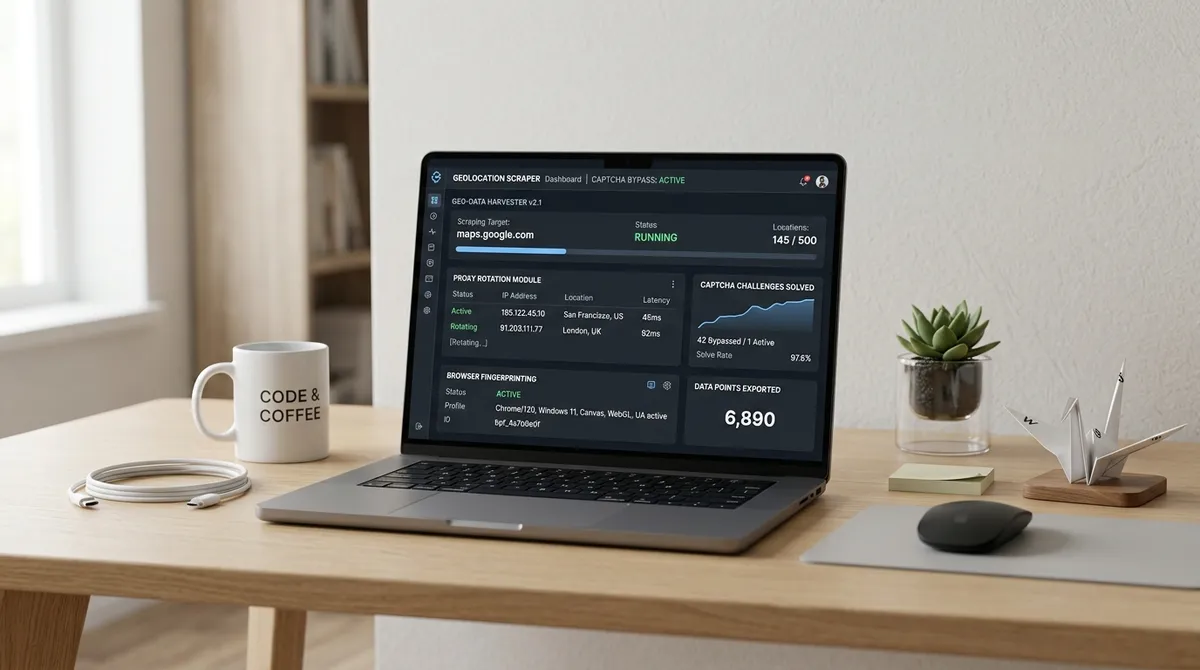
Here is the thing nobody tells you about cold email campaigns built from Google Maps data: the data itself is your biggest asset. You already know the business name, city, star rating, review count, and whether they have a website. Most outreach tools just let you use a first name. You have their whole profile.
The templates below are built around that. They are specifically designed for outreach after a Google Maps lead extraction — using the fields you actually have in your CSV.
Before any of that, though, you need the leads. If you have not done a Google Maps extraction yet, read our extraction guide first or install LeadsAgent directly and run your first scrape in under five minutes.
Why most cold emails from Google Maps lists fail
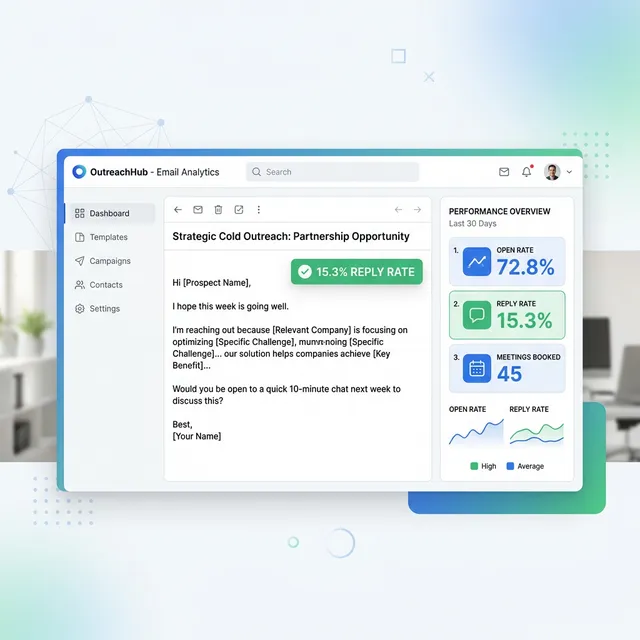
The failure mode is almost always the same. Someone pulls 500 leads, loads them into Instantly or Lemlist, and sends the exact same generic email to every one of them. The email says something like "Hi, I help businesses grow their revenue" and then asks for a call.
It converts at about 0.2%.
The problem is not lack of personalisation — it is the wrong personalisation. Swapping in a name does not make an email feel personal. What makes it feel personal is showing you have paid attention to something specific about that business. And your Google Maps export already gives you that — 27% of small businesses still have no website, which alone is one of the strongest personalisation hooks you can use.
The merge fields available from a LeadsAgent export
Every template below uses at least one of these columns from your CSV:
[Business Name]— the company name from their listing[Star Rating]— 1-5, from their Google Maps page[Review Count]— total reviews on their listing[City]— their location[Has Website]— whether they have a website URL in the export
These are not things you research individually. You already have them for every lead on your list.
Template 1: The Google Maps rating opener
This is the one that works best across nearly every niche. It references their exact Google Maps rating — data your prospect can verify in ten seconds — which is what makes it feel credible rather than generic.
Subject: Quick question about [Business Name]

Hi [First Name],

Was looking at [Business Name] on Google Maps — [Review Count] reviews
averaging [Star Rating] stars is a solid reputation.

One thing caught my attention: a few of your competitors in [City] are
ranking above you in "near me" searches despite having fewer reviews.

I help [niche] businesses in [City] fix that kind of gap. Would a
15-minute call make sense this week?

[Your name]
The key is that "[Star Rating] stars" makes it impossible for this to be a spray-and-pray email. They know you looked at their listing.
Template 2: The no-website angle
This one is for web design and digital marketing agencies using the no-website filter. When you export from LeadsAgent, look for rows where the Website column is blank. Those businesses have a Google Maps presence but no web presence at all — they're your warmest prospects.
Subject: Found [Business Name] on Google Maps

Hi [First Name],

Came across [Business Name] while looking at [niche] businesses in
[City] on Google Maps.

You do not have a website listed — which almost certainly means you're
losing customers to competitors who do. People look for [niche] on
their phones, click the first result, and book.

I build sites for [niche] businesses in [City] in about 2 weeks, starting
at $[price]. Can I send you one quick example?

[Your name]
The no-website filter is one of the more underrated features in a Google Maps extraction workflow. It turns a general list into a pre-qualified one. For more on running different angles beyond this, the seven campaign types guide covers every approach.
Template 3: The competitor rank angle
Best for local SEO and Google Maps optimisation agencies. This one works because it creates specific urgency without being vague about why.
Subject: [Competitor] is outranking [Business Name] on Maps

Hi [First Name],

Did a quick check — [Competitor Name] is showing above [Business Name]
for "[target search term]" searches in [City].

Helped three other [niche] businesses in [City] fix that in 30 days.
Happy to run a free audit on your listing.

Worth 10 minutes?

[Your name]
Template 4: The social proof drop
This one leads with a result rather than a problem. It works particularly well when you have a real case study from the same niche.
Subject: How a [niche] business in [City] got 47 leads in 30 days

Hi [First Name],

Helped a [niche] company similar to [Business Name] generate 47 new
client inquiries in their first month from Google Maps optimisation.

Think we could do something similar for [Business Name].

Free for a 15-minute call this week?

[Your name]
Template 5: The one-liner (for re-engagement)
Use this as your last email in a sequence where three or four previous emails went unanswered. It outperforms the longer emails at this stage because short = curious.
Subject: Still relevant?

Hi [First Name],

Still looking to grow [Business Name]'s pipeline this quarter?

[Your name]
This sounds almost too simple, but it consistently pulls replies at the tail end of sequences. Follow up with full context only if they respond.
Template 6: The value-first email
Works well in competitive markets where everyone is sending pitches. You lead with a specific piece of value rather than asking for a call.
Subject: Free audit for [Business Name]

Hi [First Name],

Looked at [Business Name]'s Google Maps listing — noticed a couple of
quick wins that could improve your local search position in the next
two weeks.

Happy to share them on a short call. No pitch, just the info.

[Your name]
Template 7: The break-up email
Your final email in any sequence. Counterintuitively, this one often generates the most replies — the "last chance" framing creates a response that longer emails do not.
Subject: Closing the loop

Hi [First Name],

I have reached out a couple of times about helping [Business Name] get
more visibility on Google Maps. I do not want to keep bothering you,
so this is the last email from me.

If it is ever relevant, my info is below.

[Your name]
How to sequence all seven
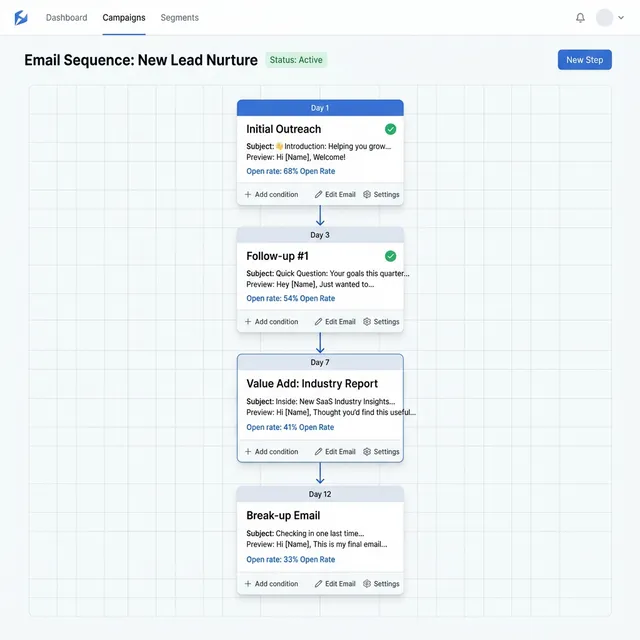
Here is a straightforward sending schedule that works for most agency outreach:
| Day | Template | Why |
|---|---|---|
| Day 1 | Template 1 (Rating Opener) | Specific to their Maps data |
| Day 4 | Template 4 (Social Proof) | Result-led, different angle |
| Day 9 | Template 6 (Value-First) | Lead with helpfulness |
| Day 16 | Template 5 (One-Liner) | Short, creates curiosity |
| Day 24 | Template 7 (Break-Up) | Closure, often pulls a reply |
A few things worth being careful about:
- Keep daily send volume under 50 per domain until it is warmed up (at least two weeks of warm-up before cold sending)
- Every email needs a way to opt out — legally and practically
- Personalise at minimum the business name, city, and rating. The rest of the template can stay as-is
Before you send anything
- Verify your email column with Hunter.io or NeverBounce and remove invalid addresses before sending
- Make sure your sending domain has SPF, DKIM, and DMARC records set up
- Load your CSV into your outreach tool so the merge fields pull automatically
The templates only work if the data behind them is clean. That starts with the extraction itself — and if you need help finding emails in those extracts, our email extraction workflow covers exactly how that part works.
Get your Google Maps lead list — 1,000 leads free with LeadsAgent
For more on building and running an agency-scale Google Maps lead generation operation, the agency workflow guide covers the full picture from extraction to booked meetings. And if you're focused on B2B specifically, the B2B lead generation from Google Maps guide has the exact workflow for that.