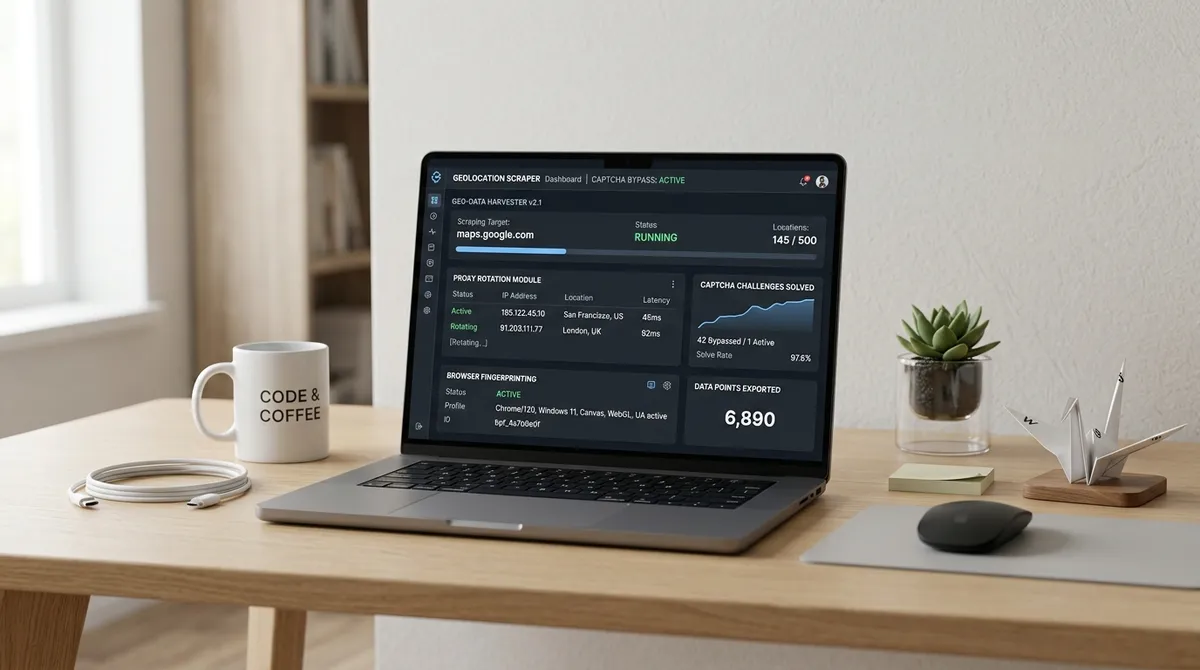
Once LeadsAgent is installed in your browser, the process is zero-setup. You don't need to manually search Google Maps yourself anymore. Just describe what you need and the agent takes over.
If you haven't installed it yet, download LeadsAgent free — Chrome and Edge — it takes under 2 minutes to set up.
What is LeadsAgent?
LeadsAgent is an AI-powered browser extension for Chrome and Edge that autonomously extracts, verifies, and exports business leads from Google Maps. By converting plain-English prompts into structured CSV data containing phone numbers, emails, and ratings, LeadsAgent enables agencies to automate prospecting without code or manual scraping.
How to automate your Google Maps extraction in 3 steps
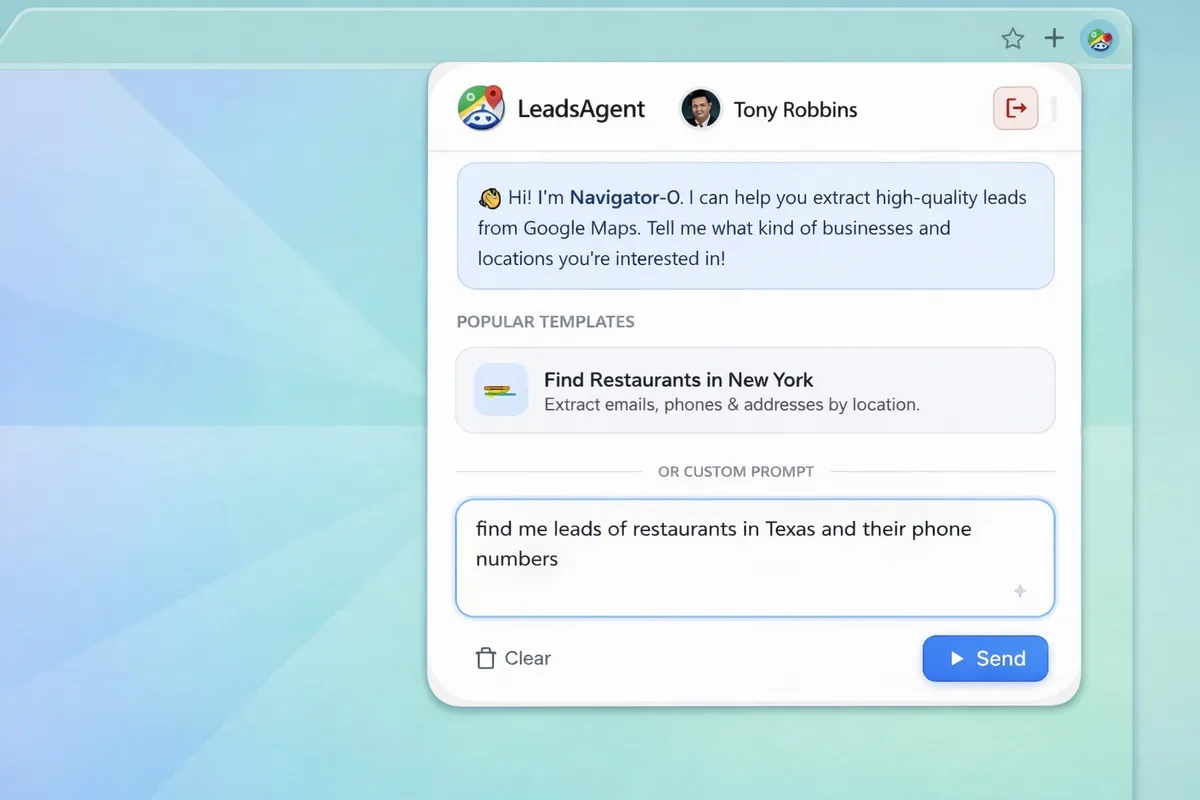
Step 01: Tell us who you want
Open the LeadsAgent extension and simply type out what you're looking for — "Restaurants in Manhattan" or "Plumbers in Austin without a website". The narrower and more specific your description, the higher the signal-to-noise ratio in your list.
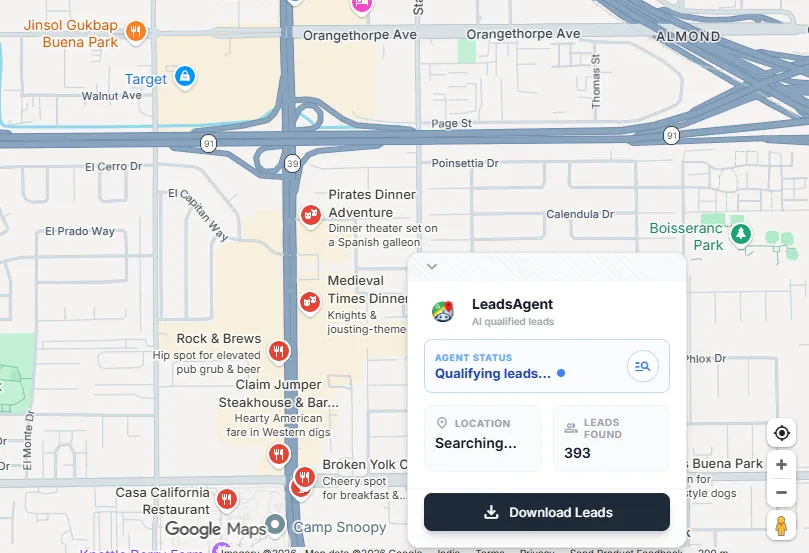
Step 02: Agent finds & verifies
Press start. The AI works autonomously to scan thousands of listings, visit business websites to find public emails, and extract real contact details. You do nothing while it builds the list in real time.
Step 03: Download your leads
When the agent finishes its extraction and verification, click export to get your clean spreadsheet. It includes name, phone, email, website URL, and review data — perfectly formatted and ready to import into your CRM or cold email outreach tool.
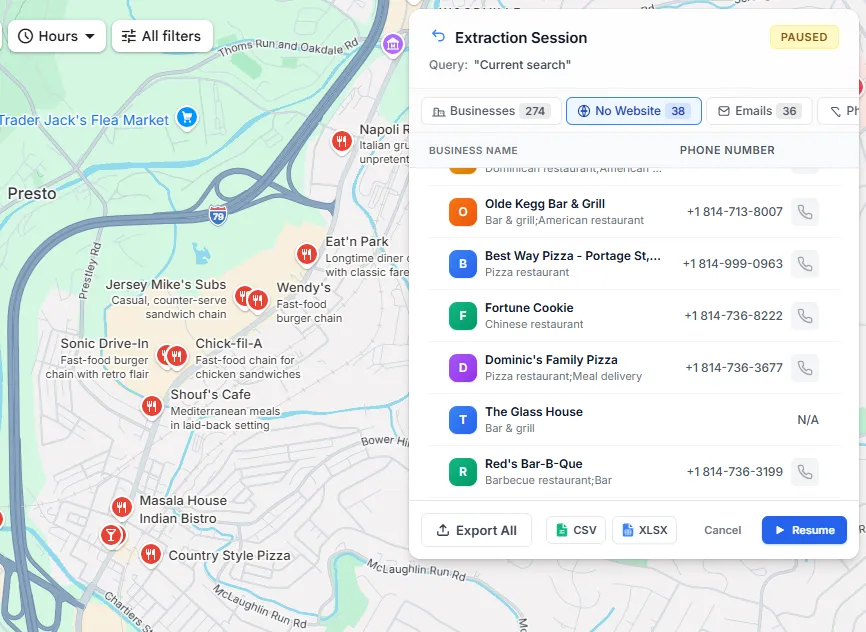
What you actually get in the export
Here is what each row in your CSV contains after a LeadsAgent extraction:
| Field | Coverage |
|---|---|
| Business name | Always |
| Phone number | ~85% of listings |
| Website URL | ~70% of listings |
| Full address | Always |
| Star rating (out of 5) | Always |
| Review count | Always |
| Email address | ~40-60% (from website) |
| Business category | Always |
The email coverage depends on how easy it is to find on the business's own website. It is lower for businesses that only have a Facebook page instead of a proper site.
Four things that actually improve your list quality
Target mid-range ratings, not the highest ones. Businesses with 3.5 to 4.5 stars are well-established enough to afford your service, but still have enough room to grow and problems to solve. The 5-star, 400-review businesses are harder to close — they're usually already working with an agency.
Run the no-website filter. Your export includes a Website column. Filter for blank rows. Those are businesses that show up on Google Maps but have no web presence — ideal if you sell web design, local SEO, or anything digital. They're the warmest market you'll find.
Go narrower on location. Instead of "restaurants in London", try "vegan restaurants in Shoreditch". You get fewer leads, but the personalisation in your outreach becomes much stronger — and the reply rates follow.
Re-scrape every 60 to 90 days. New businesses open constantly. Running the same search three months later surfaces fresh listings that were not there before. Your pipeline refills itself with zero extra research. And 27% of those new businesses won't have a website — see the businesses without website statistics for the full breakdown.
From list to outreach
Getting the spreadsheet is step one. What you do with it matters just as much.
Once you have your CSV:
- Run the email column through a verification tool (Hunter.io or NeverBounce both have free tiers). Remove anything that comes back as invalid before you send a single email.
- Segment by rating. Higher-rated businesses get a different angle — you are helping them scale something that is already working. Lower-rated ones are often struggling and more open to help.
- Write personalised cold emails that reference their rating, location, and business type. Our cold email templates guide has seven templates built specifically for Google Maps leads — worth reading before you hit send.
For a deeper walkthrough on extracting emails from those listings, read the email extraction from Google Maps guide. And if you want to understand the AI agent that powers the tool itself, the Google Maps scraper agent guide explains how agentic extraction works.
The numbers, side by side
| Method | Time for 50 leads | Emails included | Cost |
|---|---|---|---|
| Manual copy-paste | Around 2 hours | No | Free (your time) |
| LeadsAgent | Around 3 minutes | Yes (~40-60%) | Free |
| Purchased lead list | Instant | Sometimes | $200-500/month |
The time difference alone is the reason most agencies switch. But the email coverage and data freshness are what make it actually worth running a campaign against.
Install LeadsAgent — 1,000 leads free every month, no card required
If you are running Google Maps campaigns at agency scale, also have a look at our Google Maps scraper guide for agencies — it covers the full weekly workflow from extraction to booked meetings.
For seven different campaign types you can run with the data, check out the Google Maps lead generation campaigns guide.